

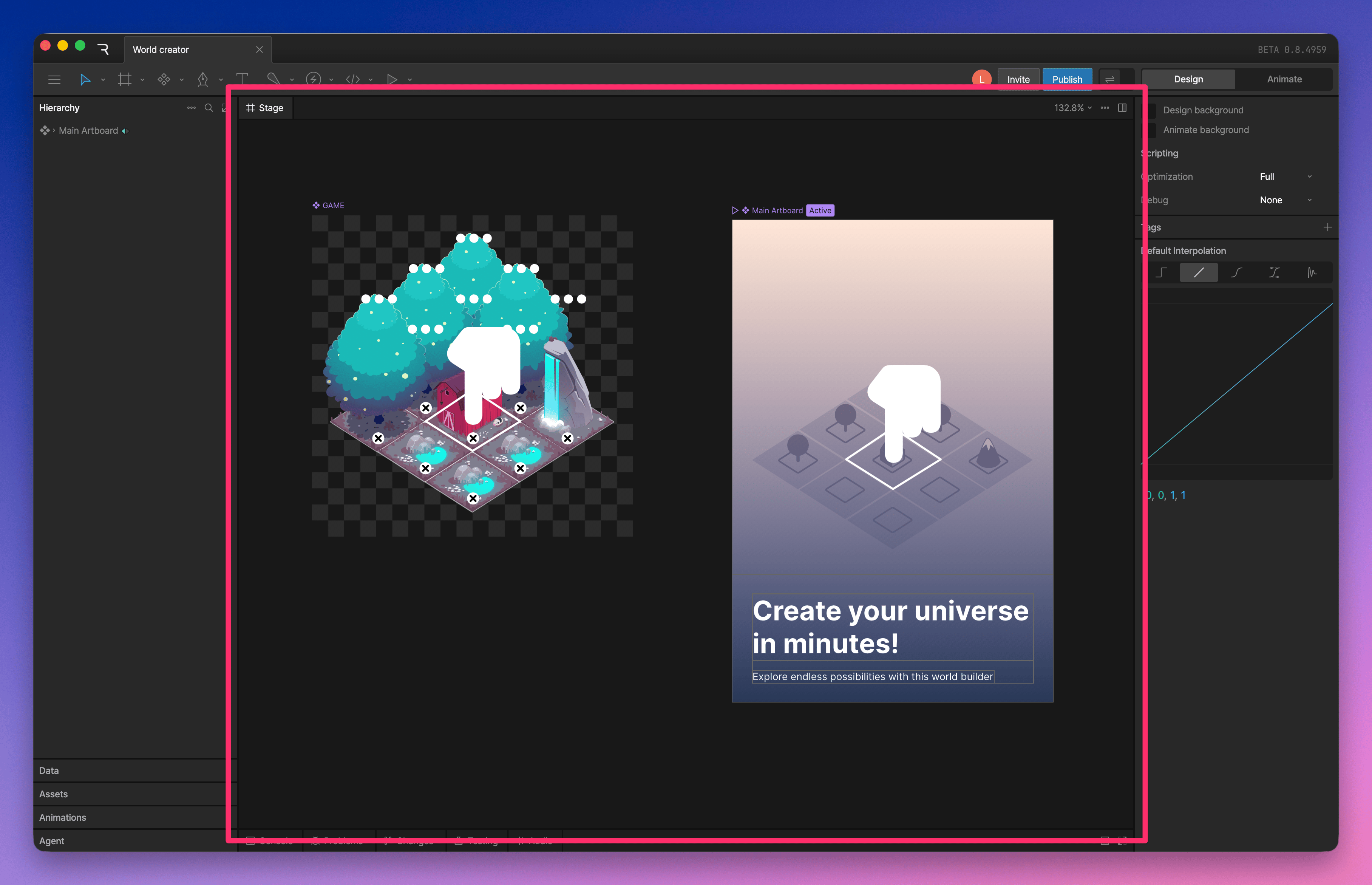
View Options menu
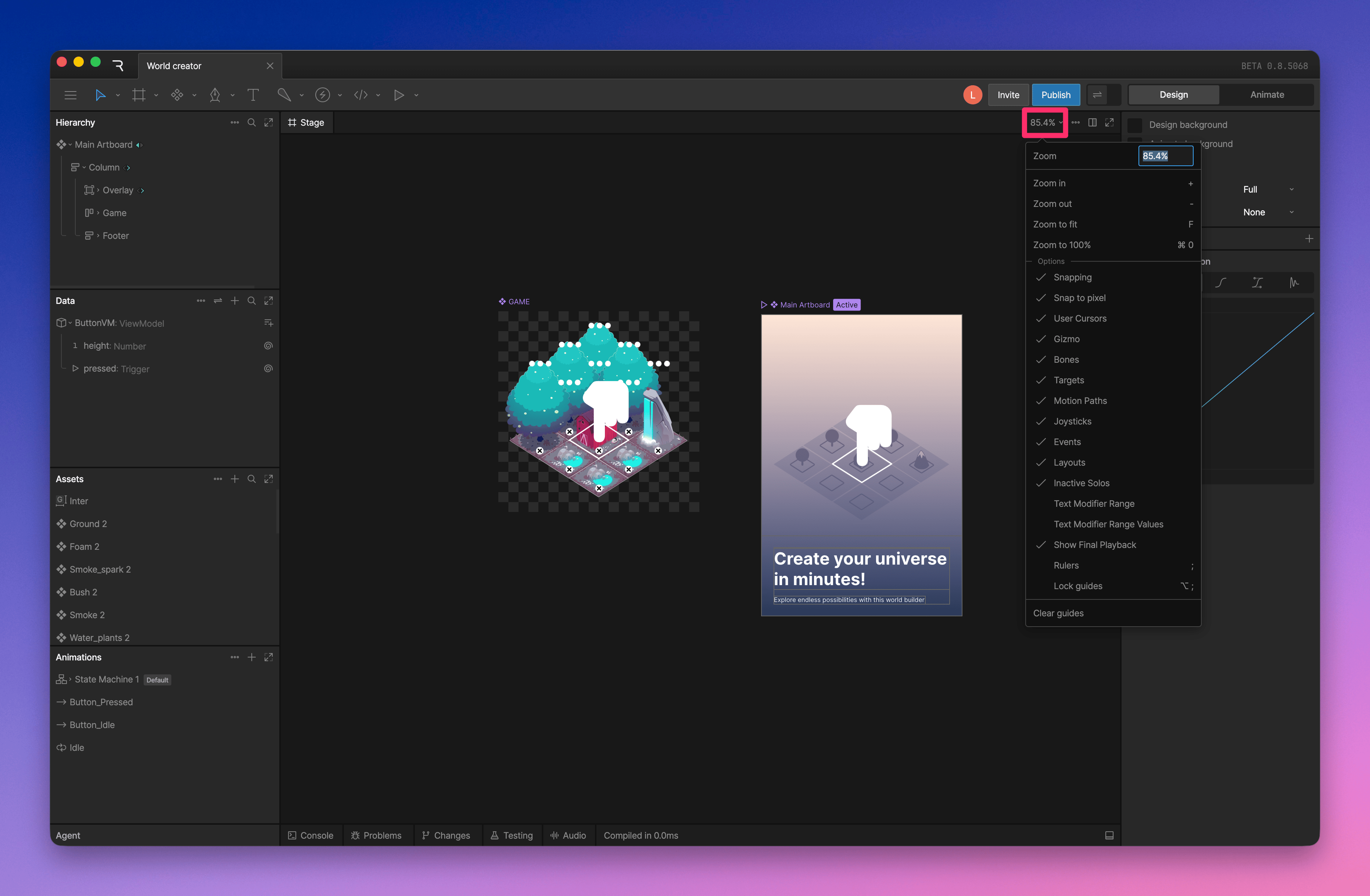
- Zoom and snapping: adjust the stage zoom level, enable snapping, or snap objects to pixels
- User Cursors: show or hide other users’ cursors
- Tool overlays: show or hide gizmos, bones, targets, motion paths, joysticks, events, layouts, and text modifier ranges
- Show Final Playback: show the final playback state while editing
- Rulers and guides: show rulers, lock guides, or clear guides from the stage
Stage Background Colors
You can set separate stage background colors for Design mode and Animate mode. Using different colors can make it easier to tell which mode you are in at a glance. This can help prevent accidentally editing keys or animation values when you meant to work in Design mode. To change the stage background colors, deselect everything, then use the background color options in the Inspector.Stage background colors are only visible in the editor. They do not affect the artboard background, exports, or runtime appearance.