Using the Interpolation Panel
The Interpolation Panel appears to the right of the timeline when you select any number of keys on the timeline.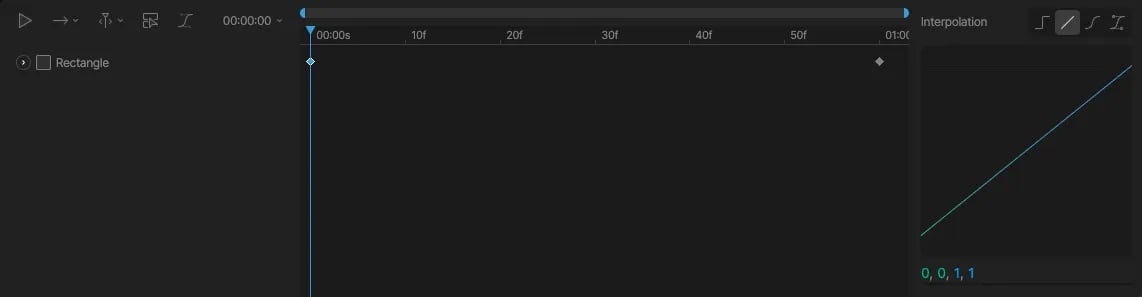
Linear
Cubic
Hold
Interpolation field
A text field below the preview graph represents the interpolation in a numerical format. A total of four values (typically between 0 and 1) represent the position of the handles – two for the inward curve, and two for the outward curve. You can see how these values change by dragging the handles within the preview window. Use this field if you wish to set specific easing values, perhaps defined in a design language for a specific brand, for instance. The field also makes it easy to copy and paste values across files and tools. When inputting values manually, use a comma or a space to separate each of the four values.Default Interpolation
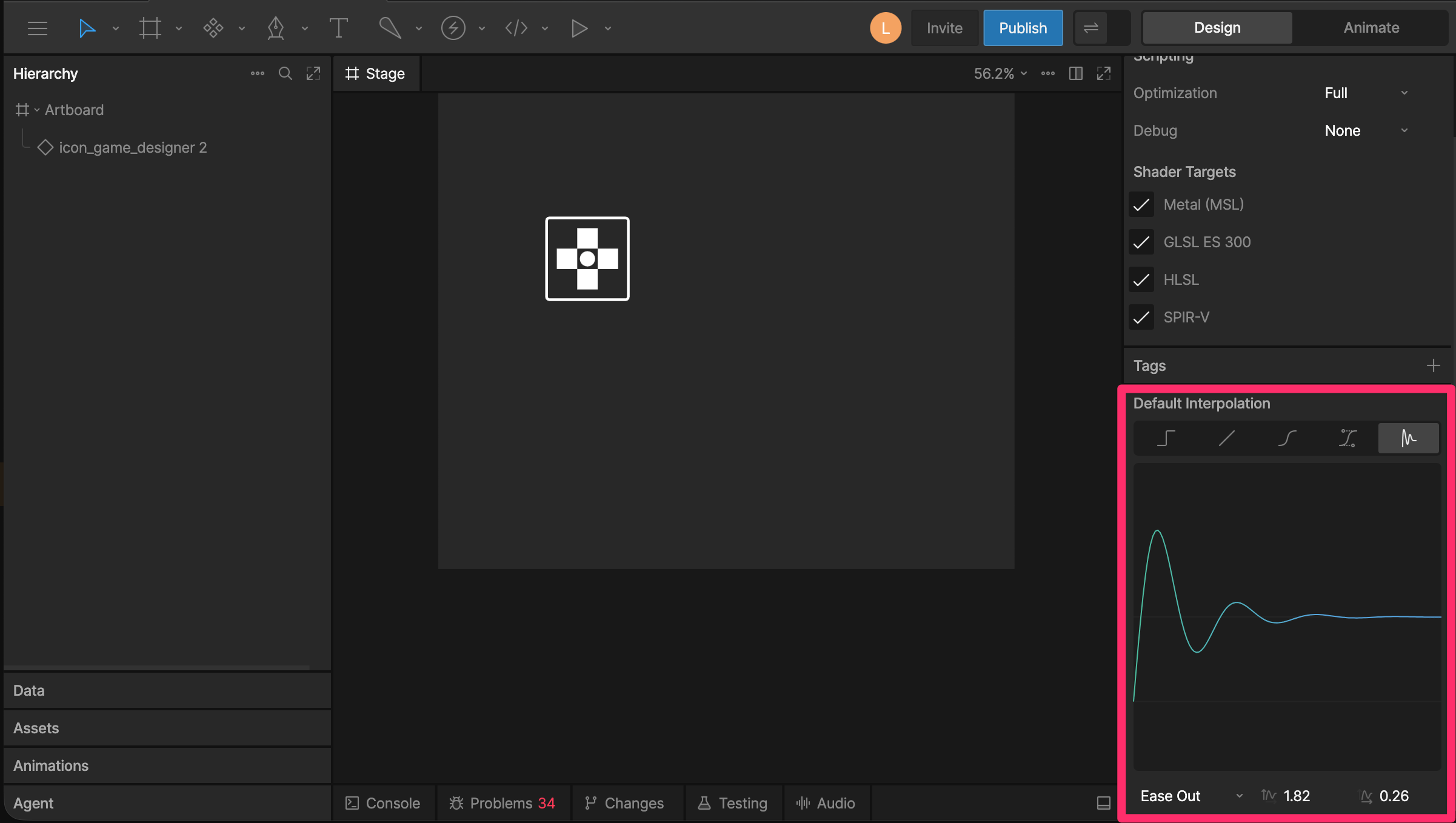
You can set a default interpolation to control the interpolation used by new keys. There are two ways to set the default interpolation:Set a Selected Key as the Default
Select a key, then open the interpolation options in the Inspector and click Set as default.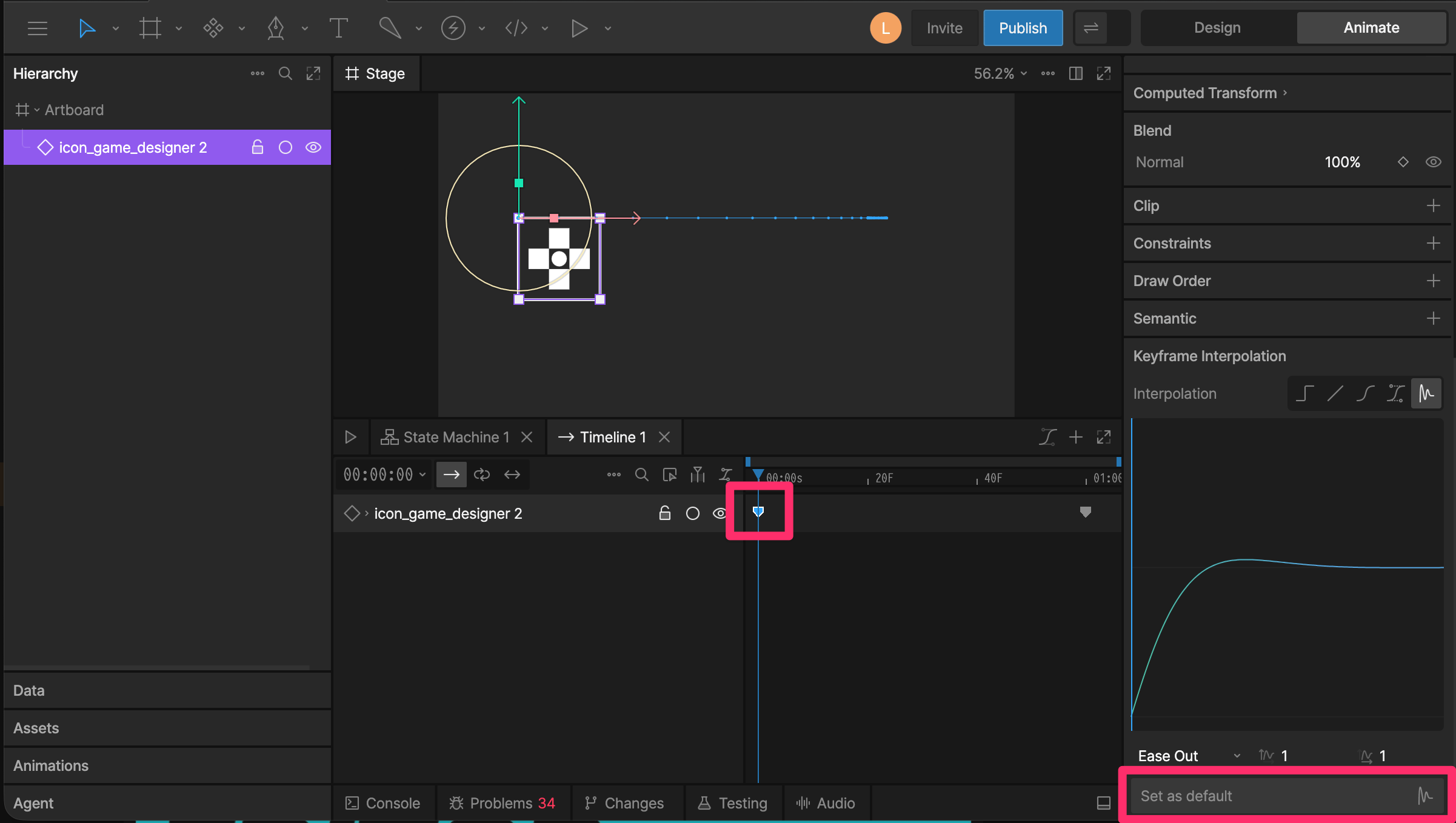
Set the Default from the Inspector
Deselect everything on the stage. The Inspector shows the default interpolation options for new keys. Choose the interpolation you want new keys to use by default.